
If you would like both parents or guardians (they are technically parents in our system) to have the same parent–teacher conference schedule, you can use the Linked Household feature. This ensures that all guardians of a student stay coordinated, reducing scheduling conflicts and miscommunications.
Works for all integrations except for None.
How to Link a Household
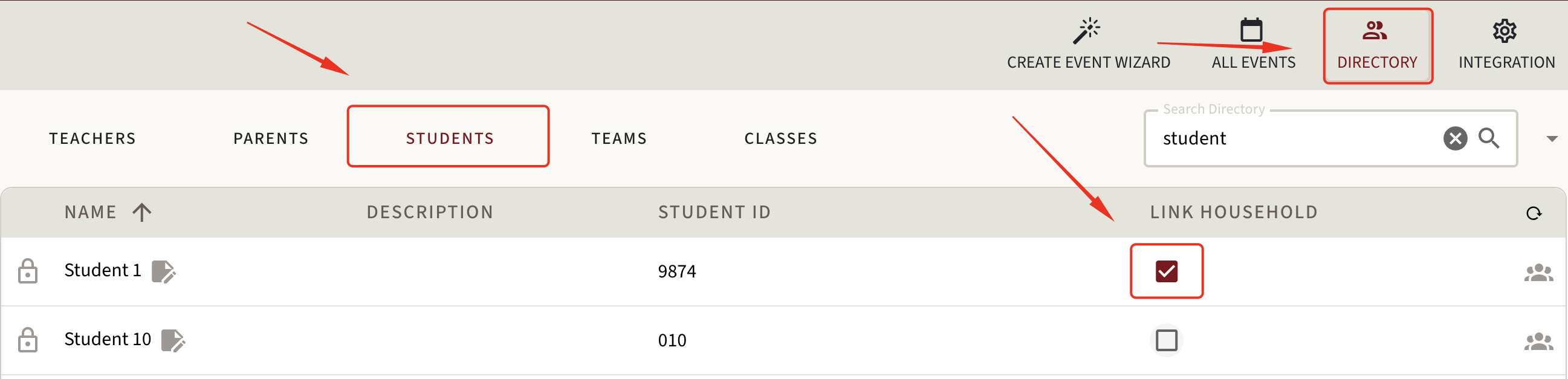
Go to Directory
Open the Student List
Click on the Linked Household (square icon) next to the student’s name (see a screenshot 1)
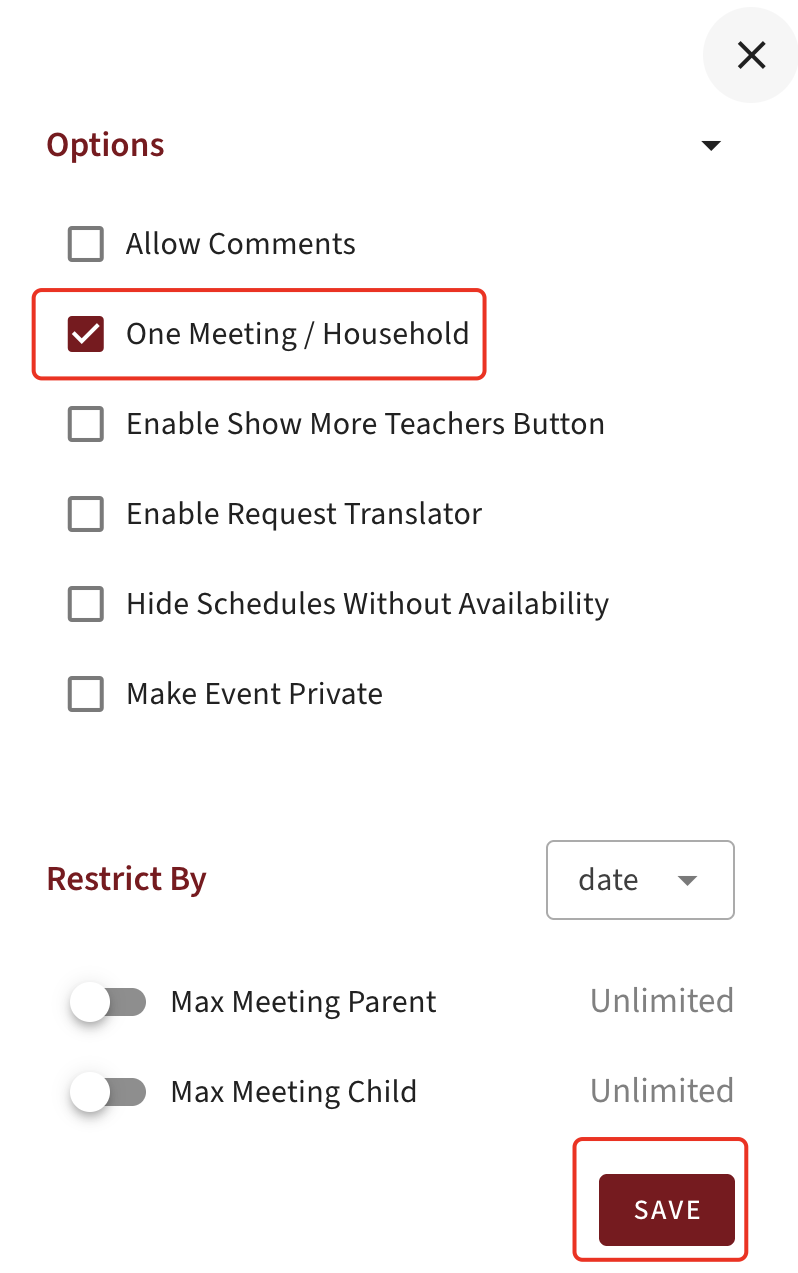
Go to All events - Edit - Options - Click on One Meeting / Household - Click on Save (see a screenshot 2)
Once this feature is enabled for a specific student, all parents or guardians linked to that student will remain aligned when scheduling conferences.
When Linked Household is turned on:
One parent can book a parent–teacher conference and the system automatically creates the same appointment for every other parent or guardian linked to that student.
All linked parents will see the same date, time, and teacher in their accounts.
Both parents will receive the same email confirmation for the meeting.
If another guardian already has a meeting scheduled at the same time, the system will prevent the double-booking and display a clear message explaining the conflict.
1.
2.
Benefits
One booking covers the entire household
Parents or guardians stay on the same page with schedules
Reduces accidental double bookings and miscommunication between co-parents or caregivers
Using Linked Household helps make conference scheduling simpler, clearer, and more organized for both families and teachers!
Need Further Assistance?
If you have any further questions, please reach out to our Support Center for additional help at support@ptcwizard.com. We are always happy to help!