
If some parents require a translator during their meetings, you can enable the Request Translator option for your conference. This feature helps you collect this information in advance and ensures teachers are aware of translation needs.
Important Disclaimer 
PTC Wizard does not provide translator or interpretation services. The Request Translator option only notifies teachers that a parent has requested a translator for the meeting.
Please note that this setting applies to all conference days within the selected conference.
How to Enable the Request Translator Option
After your conference has been created:
Go to All Events
Click Edit next to the relevant conference
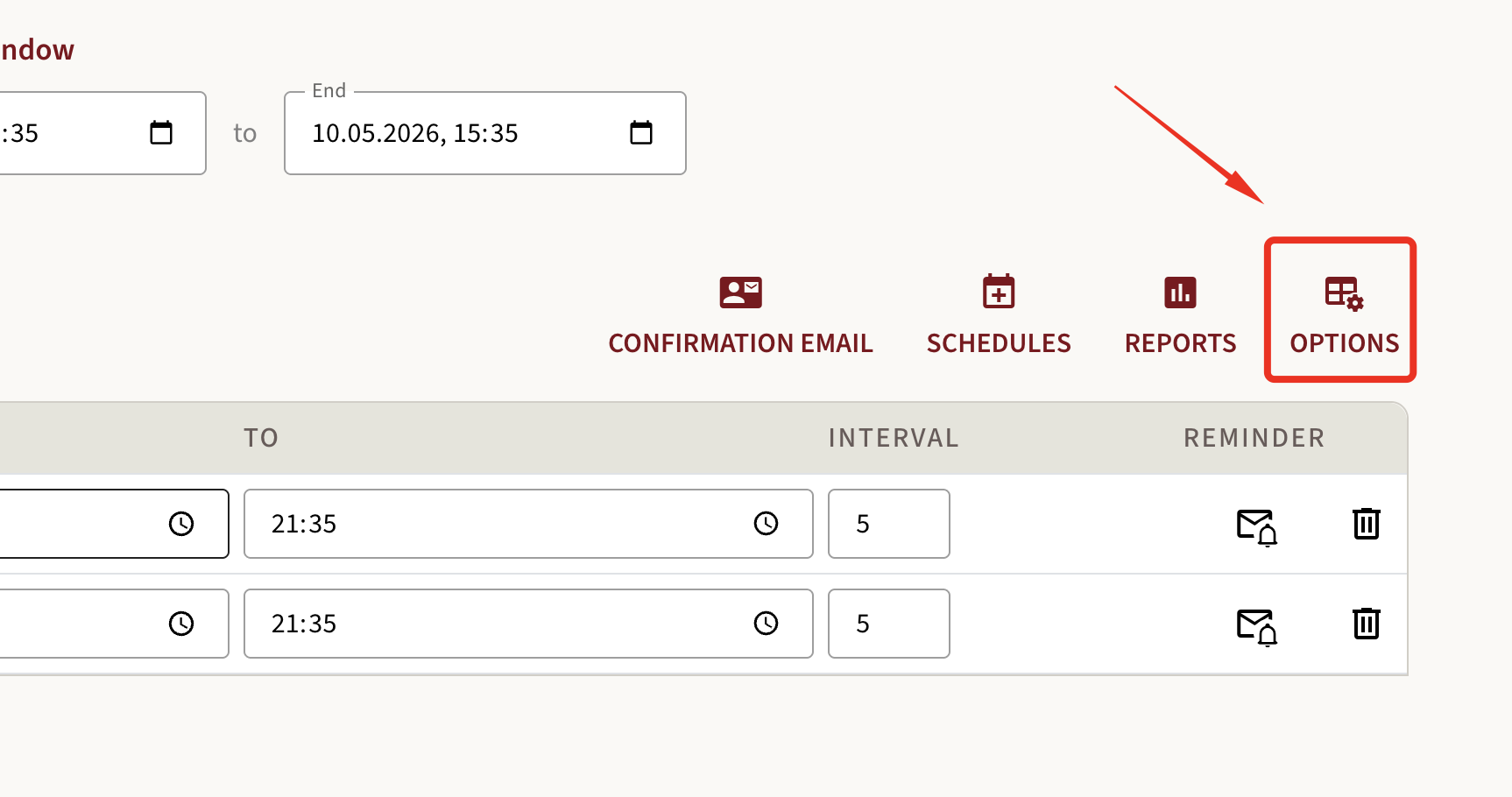
Open the Options tab
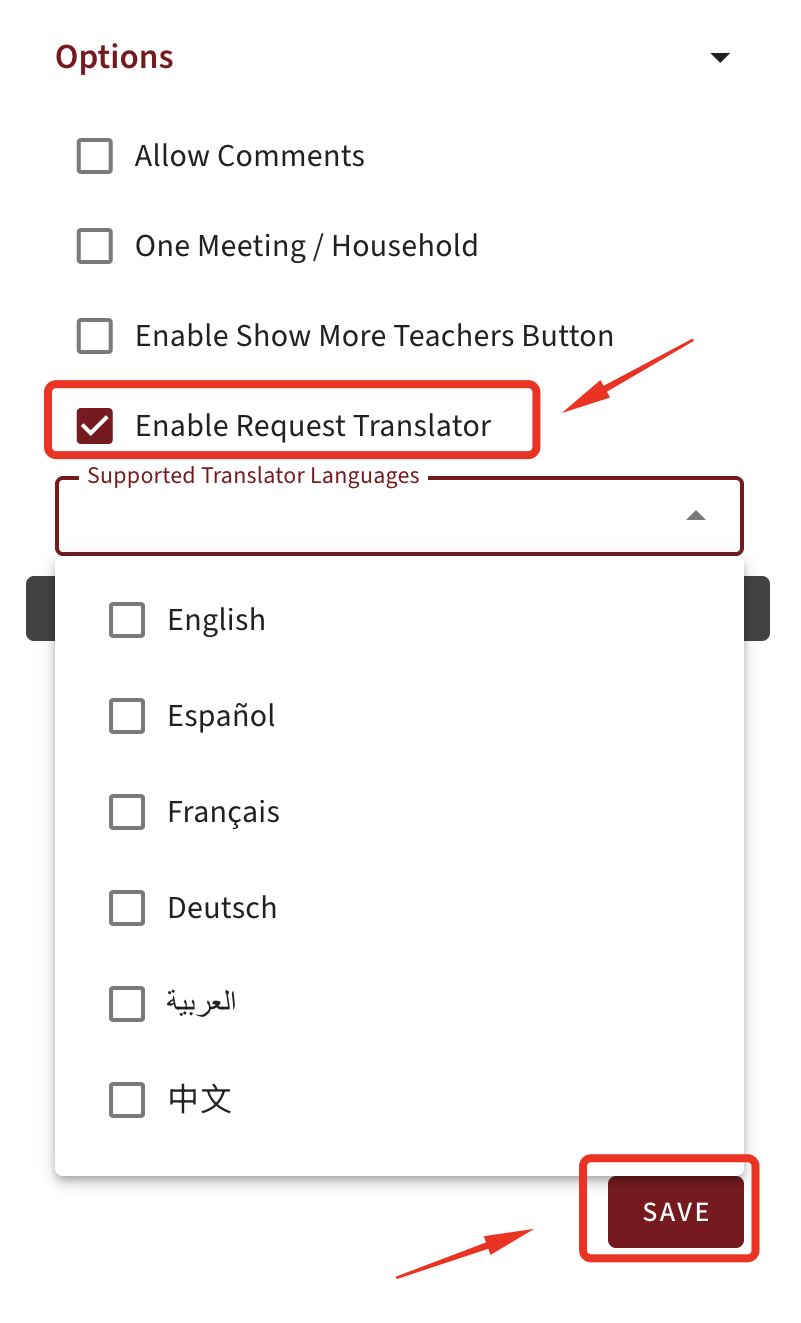
Enable Request Translator
Select one or more languages from the list
Click Save
1.
2.
How It Works for Parents
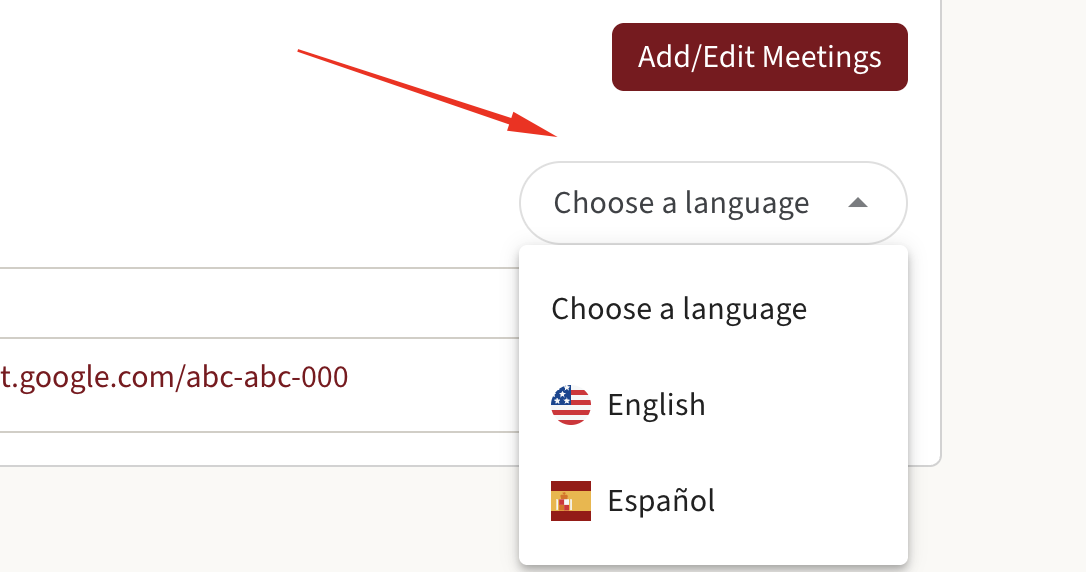
Once enabled, parents will have the option to indicate whether they need a translator when booking their meetings.
If multiple languages are available, parents must select the required language from a drop-down menu.
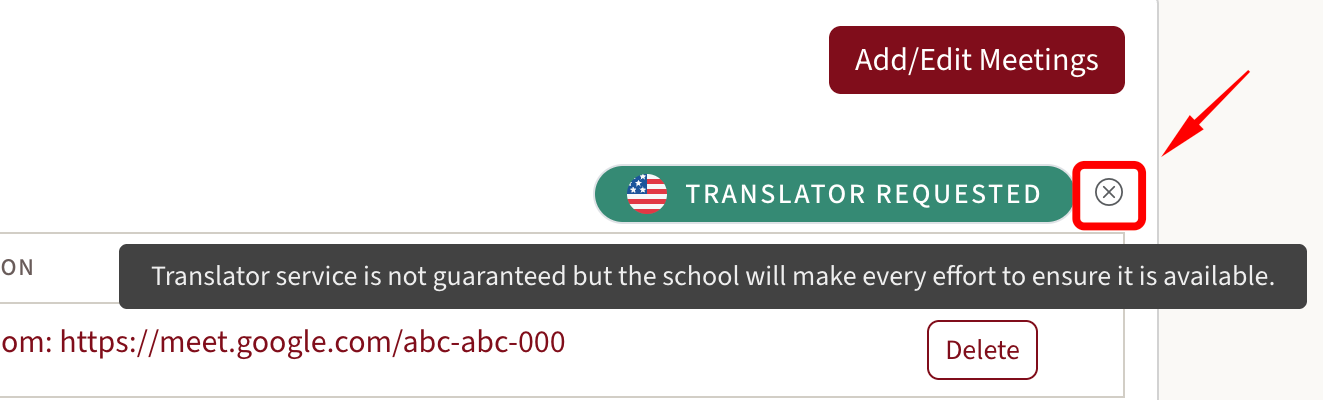
- If a parent does not require a translator, they must click the “X” (cross) next to the translator option to indicate that no translator is needed.
1.
2.
How It Works for Teachers and Administrators
The translator request information will be visible in the teacher’s account (screenshot 1).
The details will also appear in the Master Report Documentation, allowing administrators to plan accordingly (screenshot 2).
1.

2.

Need Further Assistance?
If you have any further questions, please reach out to our Support Center for additional help at support@ptcwizard.com. We are always happy to help!