
When your school uses virtual meetings, there are two ways meeting links can be added to your appointments:
Option 1: Use One Meeting Link for All Appointments
You can use the same meeting link for all of your appointments. For example, you may use one personal Google Meet, Microsoft Teams, or Zoom link and share that same link with every parent/guardian.
This option is simple and reliable because the same link is used for every meeting. We recommend this option if you want one consistent link and do not need a separate meeting link for each appointment.
Our platform supports integrations with Google Meet, Microsoft Teams, and Zoom, allowing meeting links to be generated automatically when appointments are scheduled.
Google Meet, Microsoft Teams, and Zoom are third-party services integrated with our platform. As we do not control their availability or performance, we recommend using manual meeting links for greater reliability and convenience of a single link for all meetings.
Before proceeding, ensure that the Virtual Meeting type has been enabled for the conference by your school's administrator. If this option is unavailable, please contact your administrator for assistance.
Accessing Integration Settings
To configure an integration:
- Log in to your account.
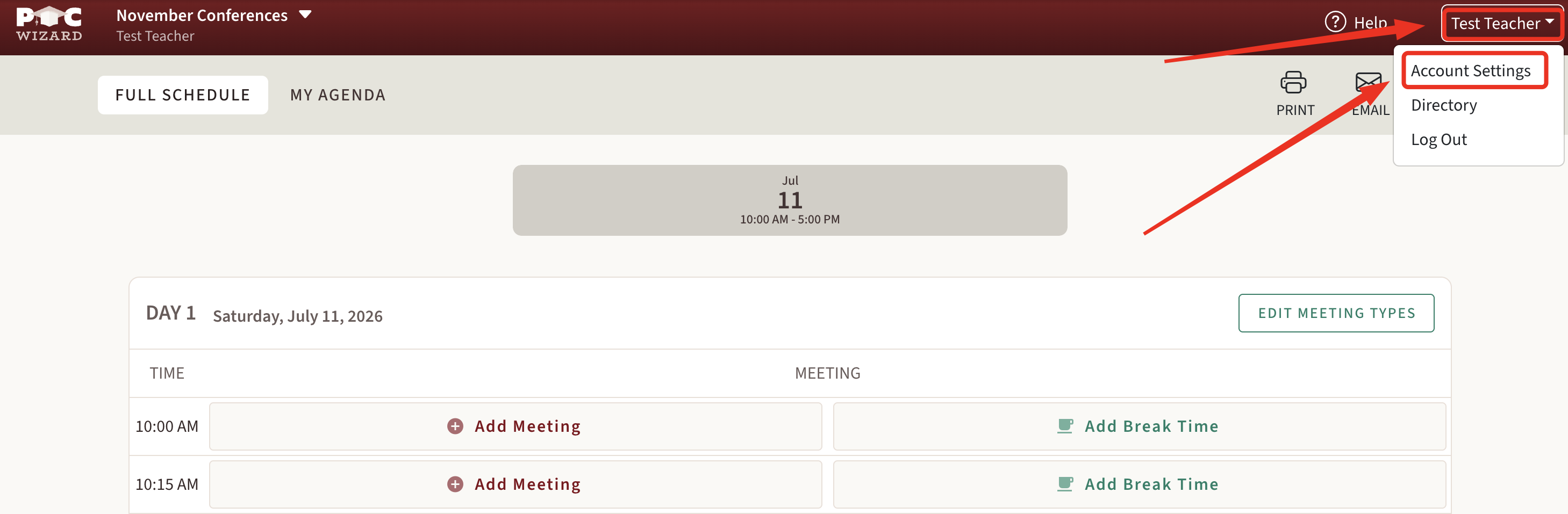
- Click your name in the upper-right corner of the page.
- Open Account Settings.
Google Meet Integration
Connecting Google Meet allows the platform to automatically create Google Meet links for scheduled appointments.
Step 1: Connect Your Google Account
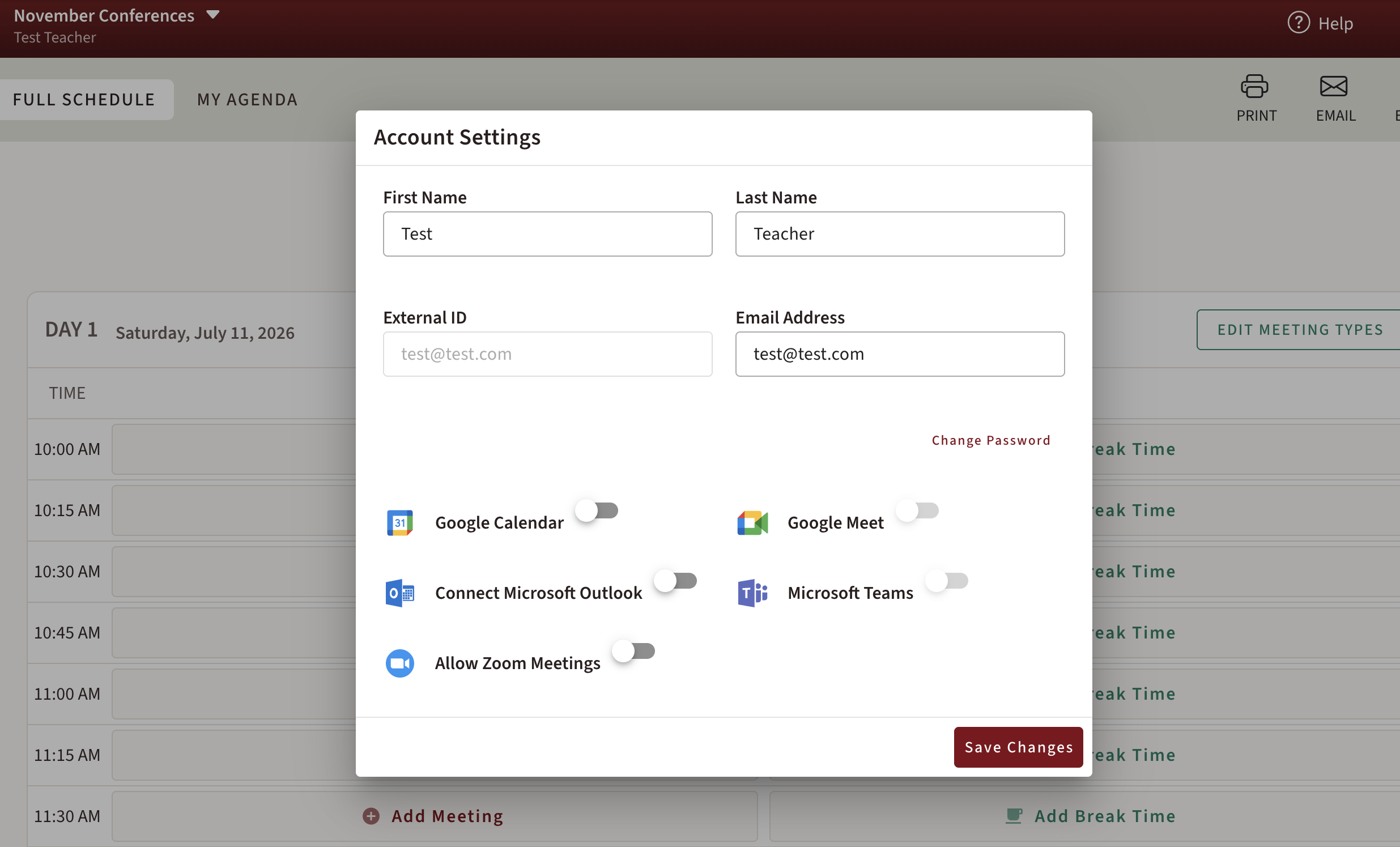
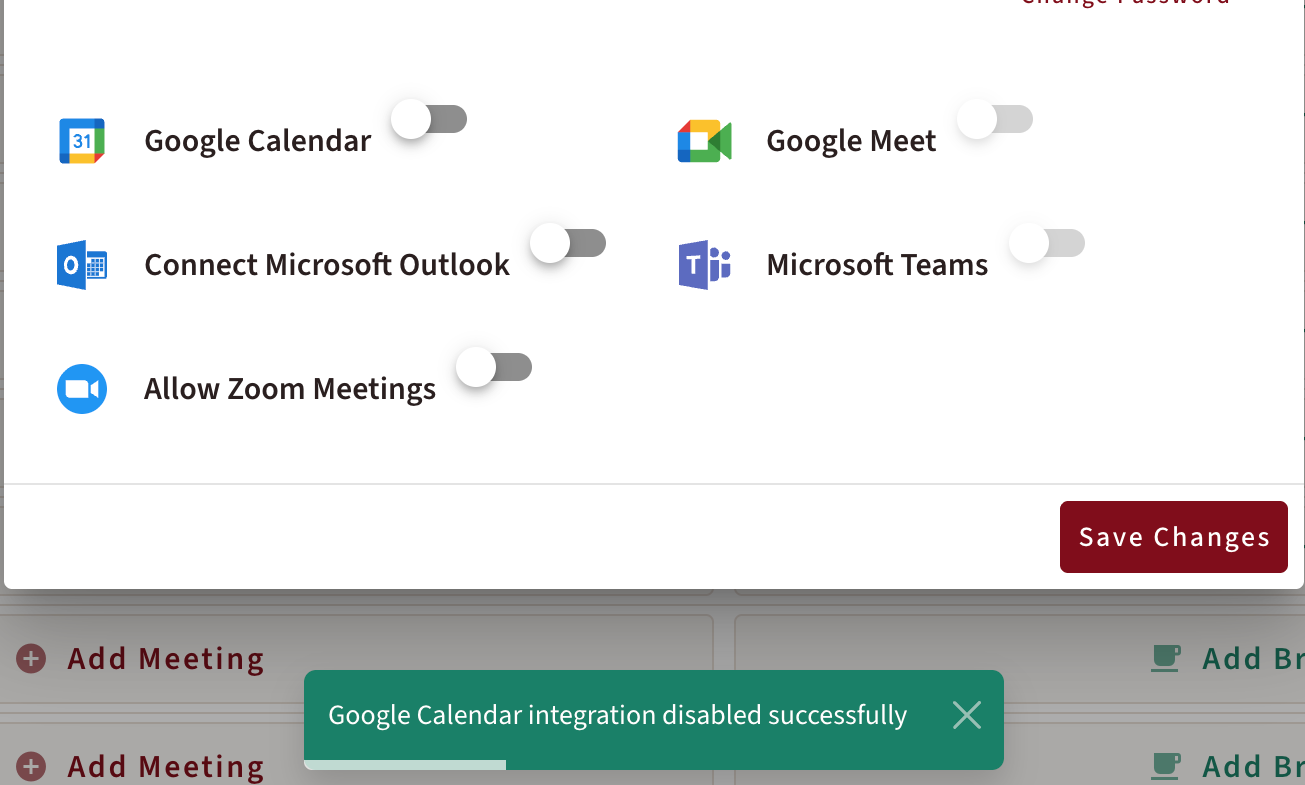
- In Account Settings, enable the Google Calendar integration.
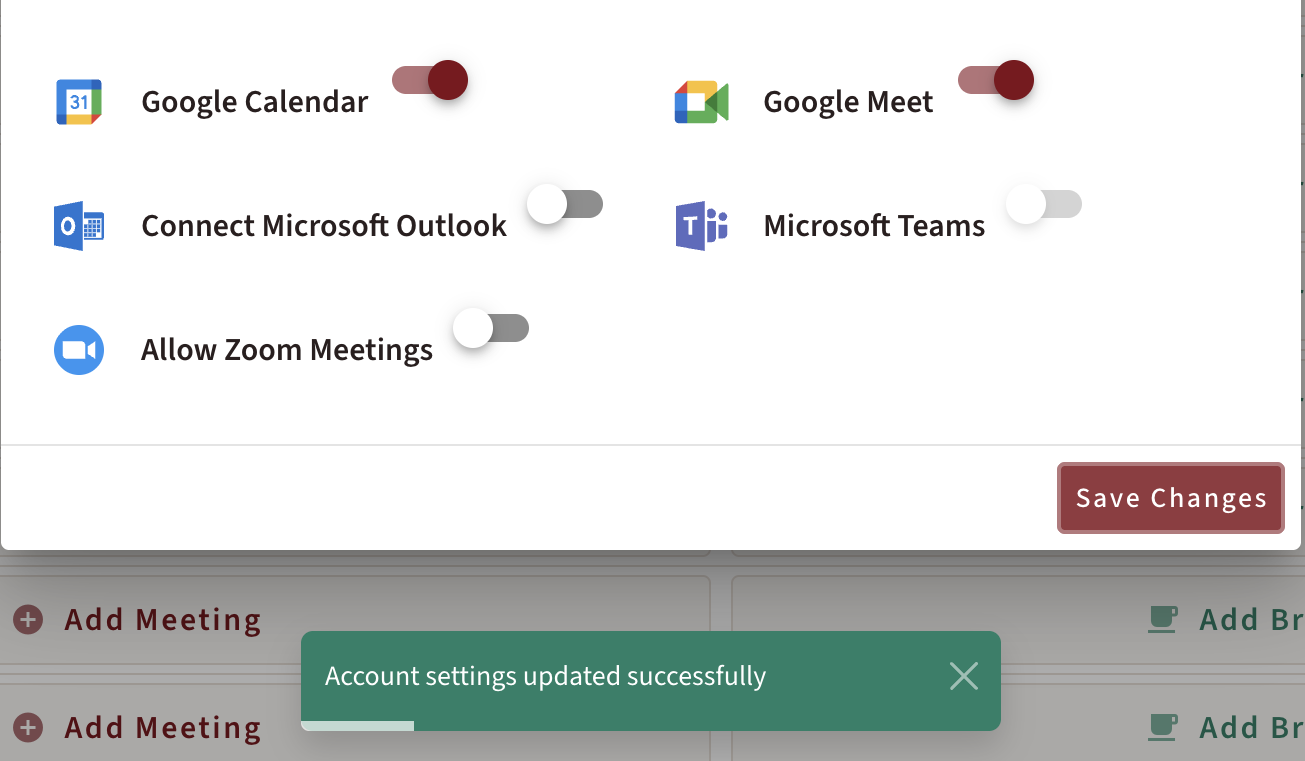
- Once Google Calendar is connected, enable the Google Meet toggle.
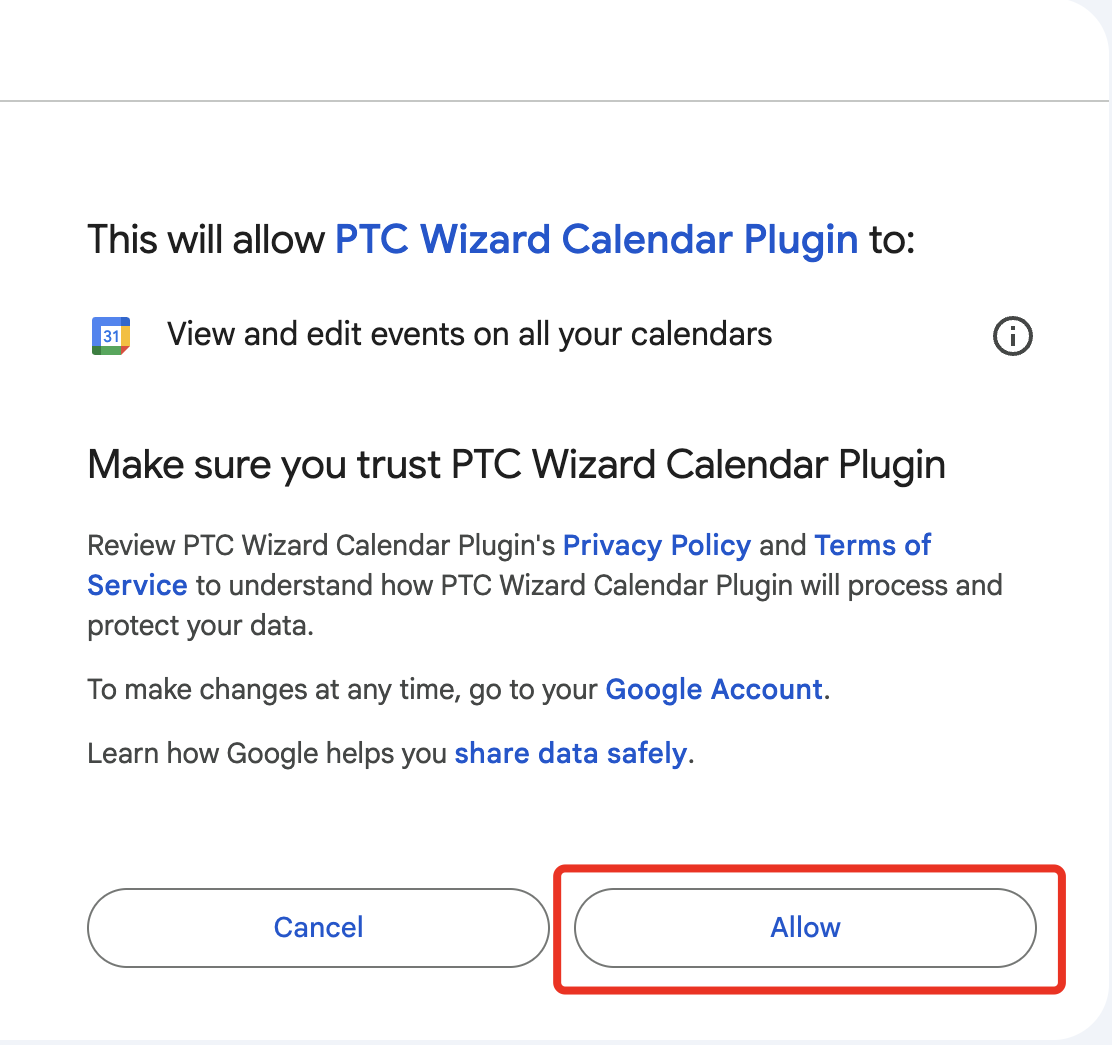
- You will be redirected to Google's authorization page.
- Sign in with your Google account (your email address must match the one associated with your account).
- Review and grant all requested permissions.
Important: All requested permissions must be approved for the integration to function correctly. Restricting permissions may prevent meeting links from being generated automatically.
- Return to the platform and click Save Changes.

Step 2: Enable Automatic Link Generation
After connecting your account, configure your meeting types to use Google Meet:
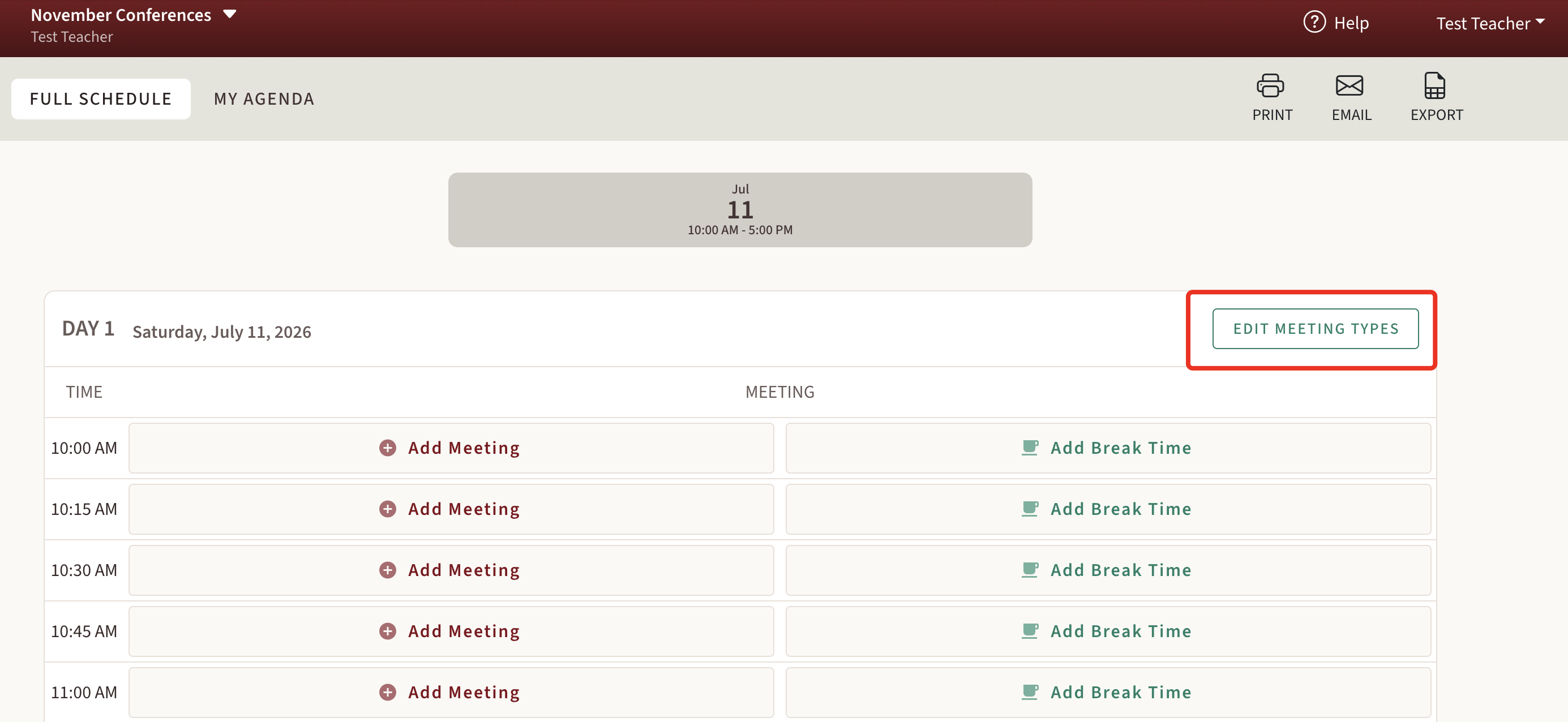
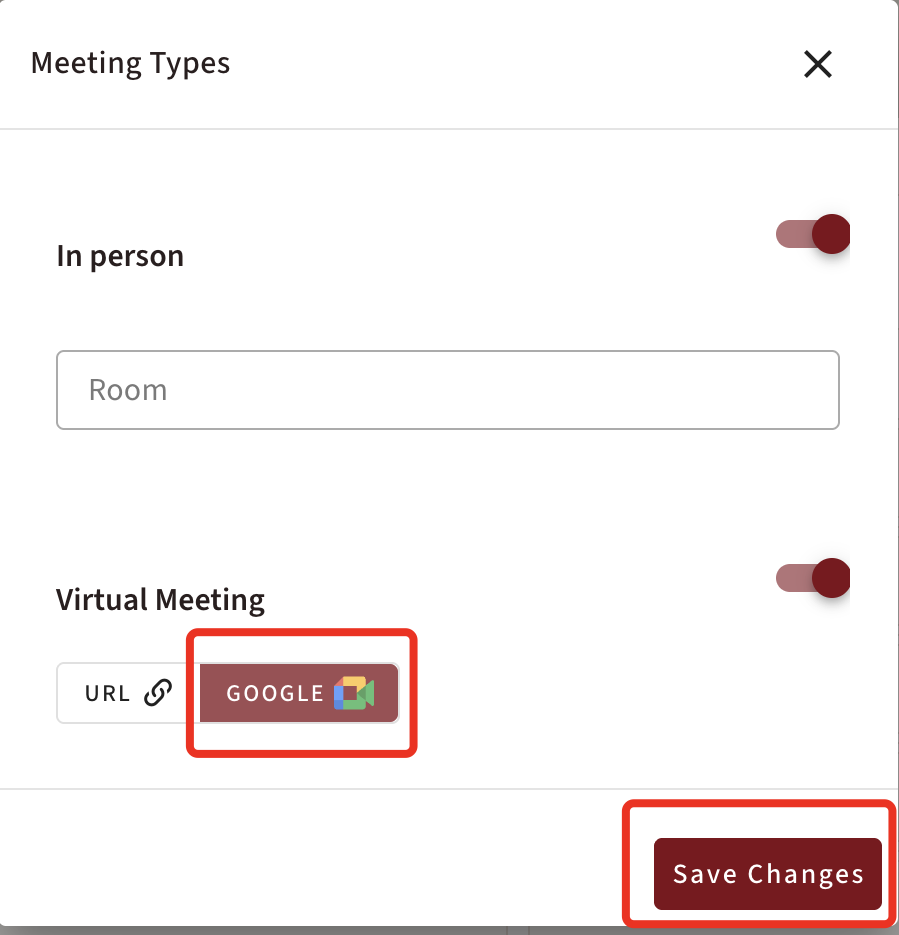
- Navigate to Edit Meeting Types.
- Select Google.
- Click Save.
This process must be completed for every conference day that requires automatic Google Meet link generation.
Microsoft Teams Integration
The Microsoft Teams integration enables automatic creation of Teams meeting links for your appointments.
Step 1: Connect Your Microsoft Account
- In Account Settings, enable Connect Microsoft Outlook.
- Enable the Microsoft Teams toggle.
- Sign in using your Microsoft account when prompted.
- Review and approve all requested permissions.
- Click Save Changes after authorization is complete.
Important: Microsoft Teams meeting creation requires the necessary Outlook and Teams permissions. If permissions are declined or revoked later, automatic meeting generation may stop working.
Step 2: Enable Automatic Link Generation
- Navigate to Edit Meeting Types.
- Select Microsoft Teams.
- Click Save.
Repeat these steps for all conference days that require Teams meeting links.
Zoom Integration
The Zoom integration allows Zoom meeting links to be generated automatically whenever appointments are booked.
Step 1: Connect Your Zoom Account
- Navigate to Account Settings.
- Enable Allow Zoom Meetings.
- Sign in to your Zoom account when prompted.
- Review and approve all requested permissions.
- Click Save Changes.
Step 2: Enable Automatic Link Generation
- Navigate to Edit Meeting Types.
- Select Zoom
- Click Save.
Repeat this process for every conference day that should automatically generate Zoom meeting links.
Using Manual Meeting Links Instead of Automatic Generation
If you prefer to create meeting links manually or do not wish to use an integrated provider, you can disable automatic meeting creation and use custom URLs instead.
To configure manual meeting links:
- Navigate to Edit Meeting Types.
- Change the meeting type to URL.
- Enter your meeting link using the supported URL format.
- Click Save.
When using the URL option, meeting links must be added manually.
For information about supported URL formats and examples, please refer to our dedicated URL formatting guide: https://ptcwizard.freshdesk.com/a/solutions/articles/3000129196
Disabling an Integration
You can disconnect an integration at any time.
To disable an integration:
- Open Account Settings.
- Locate the connected service.
- Turn off the corresponding toggle.
- Save your changes if required.
Troubleshooting Common Issues
If meeting links are not being generated automatically, verify the following:
- The Virtual Conference feature is enabled by your administrator.
- The integration has been successfully connected.
- All required permissions were granted during authorization.
- The correct service is selected within Edit Meeting Types.
- Changes have been saved after configuration.
- The connected Google, Microsoft, or Zoom account remains active and authorized.
- If an integration was previously working and has stopped functioning, try disconnecting and reconnecting the service to refresh authorization permissions.
Third-Party Service Availability
Google Meet, Microsoft Teams, and Zoom are third-party services. While our platform supports integration with these providers, we do not control their availability, performance, or reliability.
In some cases, meeting links may not be generated due to technical factors related to the third-party provider. As these services operate outside of our platform, we have limited visibility into and control over their systems, availability, and technical performance.
If automatic link generation is not working as expected, we recommend the following steps:
- Review our Common Issues and Troubleshooting Guide for known issues and solutions: https://ptcwizard.freshdesk.com/a/solutions/articles/3000129196
- Disconnect and reconnect the affected integration to refresh authorization and permissions.
- Verify that all required permissions remain granted for the connected account.
- Use the URL meeting option as an alternative and add meeting links manually.