Signing In. Parent login guide
Print
Modified on: Fri, 3 Oct, 2025 at 7:37 AM
Overview
If your school does not allow parent registrations through the PTC Wizard app, you will only be able to sign into PTC Wizard using the credentials provided to you by your school or through a single sign-on option, if available.
Step 1: Verify the login page
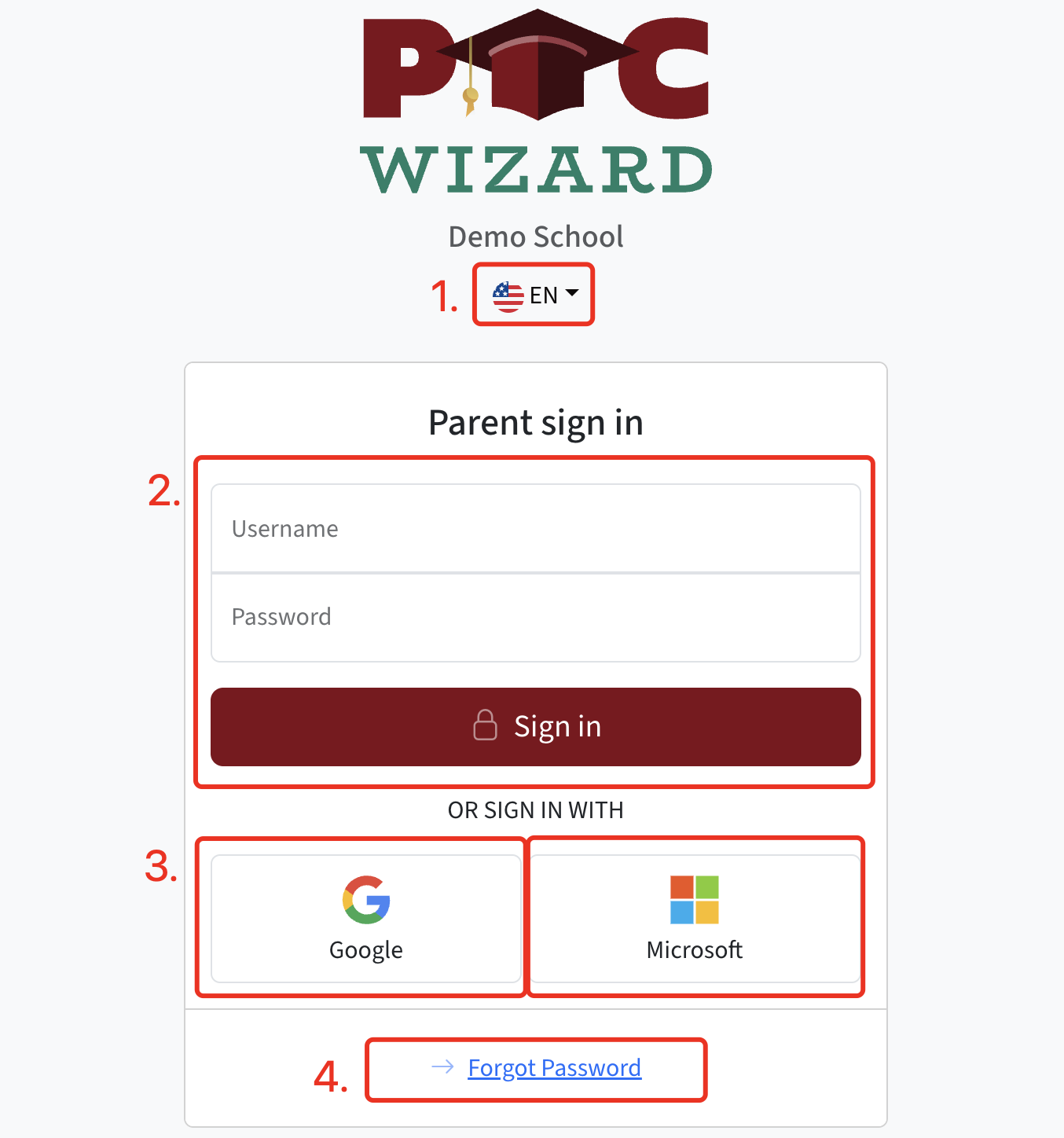
Before entering any details, make sure you are on the correct PTC Wizard login page. Check the name of your school displayed underneath the PTC Wizard logo to confirm.
Step 2: Enter your credentials
Use the login credentials provided by your school to sign into PTC Wizard. These may include your email address as the username and a password assigned by the school.
Login page navigation
On the login page, you will see the following options:
Language Selection - Choose your preferred language.
Credential Input - Enter your username (usually your email address) and password provided by the school.
Login via Google or via Microsoft - Click this option to sign in with your Google account or your Microsoft account.
Forgot Password - If you have forgotten your password, click this option to reset it.
Tips for a smooth login
Always use the credentials exactly as provided by your school.
If you are using single sign-on, ensure you are logged into the correct Google or Microsoft account.
For password resets, follow the instructions carefully and check your email for the reset link (sometimes you may find the letter in the spam folder).
For the best experience, we recommend using the latest version of the Google Chrome browser.
Did you find it helpful?
Yes
No
Send feedback Sorry we couldn't be helpful. Help us improve this article with your feedback.
